
Where to locate us?
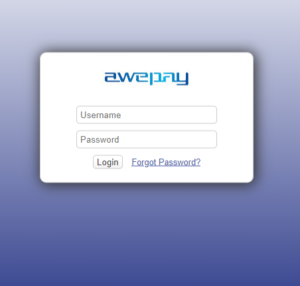
Step 1: Open any internet browser and search for https://admin.awepay.com/security
Step 2: Once the URL searched, user will be directed to the page as below.
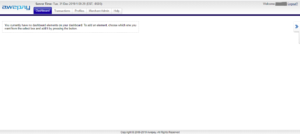
Step 3: Once logged in, user will be directed to the main page as shown below
Tabs
On top of the main page, there are 5 different tabs which designed for user to operate.

1. Dashboard
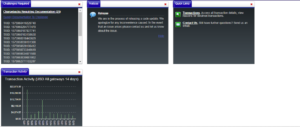
Step 1: Under dashboard user can customize which element needed to be display.

Step 2: Click on the dropdown list to select the desired element.
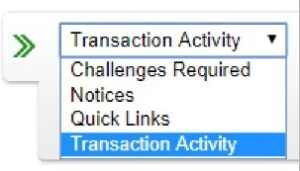
Step 3: Once user clicked on the add element button the screen will display the items as shown below.
2. Transactions
There are 2 options users can choose under transaction tab which is search and chargeback challenge.
Search will enable user to keep track and check status of the transactions.
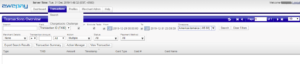
Step 1: Untick the box and select relevant date range. Please remain the time zone as America/Jamaica (-05:00)
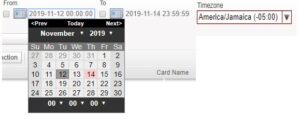
Step 2: Insert the specify TXID (aka Transaction ID) if applicable.

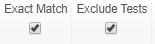
Step 3: You may untick the box if you do not wish to get exact match and do not wish to exclude test transaction.
Step 4: These are the filter function for user to specify the transaction search. You may click on the dropdown list to see what are the items you need to include or exclude.
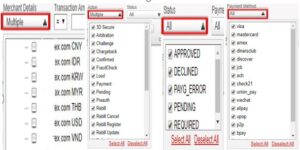
Step 5: Click search after you have inserted the information otherwise you may clicked clear filters to re-insert the information.
Step 6: You shall be able to see the details of the transaction once clicked search button.

Chargeback challenge will enable user to monitor if there are any chargeback notification so that the merchant will be able to insert any relevant documents to challenge back the chargeback. Please note that this function is only applicable for credit card.

Step 1: Check if there is any TXID listed below.
Step 2: Highlight the transaction and choose supply challenge document
3. Profile
User able to customize the profile details, security concern, contact and preferences.
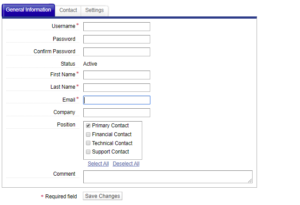
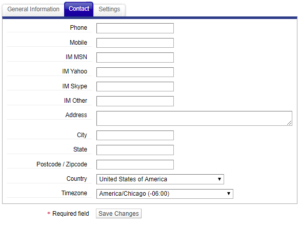
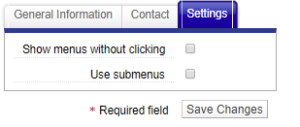
Step 1: User required to key in the mandatory info at the column marked asterisk (*).
Step 2: Please remember to click save changes after amend the information.
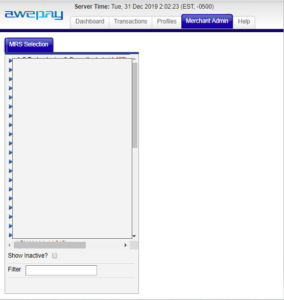
4. Merchant Admin
User can see the registered URL and SID in this tab.
5. Help
User can click on this tab to look for more information and guidelines.
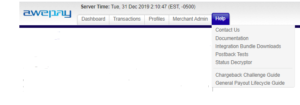
Contact Us
Temporary unavailable .
Documentation
Is a set of information and instruction for integration process.
Integration Bundle Downloads
These are the bundles of code that can be downloaded for integration purpose.
Post Back Tests
Is a platform that enable user to perform Post Back tests.
Status Decryptor
Not in used.
Chargeback Challenge Guide
Is a set of information and guidelines on chargeback related issue.
General Payout Lifecycle Guide
Not in used.